Portainer download questions usually come from people who expect a classic installer file, then discover that Portainer is delivered as a container image. That difference matters, because the safest way to get Portainer is not a random .exe or ZIP from a mirror site, but the published image and the project's own source repository.
This guide explains where Portainer CE actually comes from, how the download works through Docker, how to confirm you are using a trusted source, and what to do after the image is on your machine.
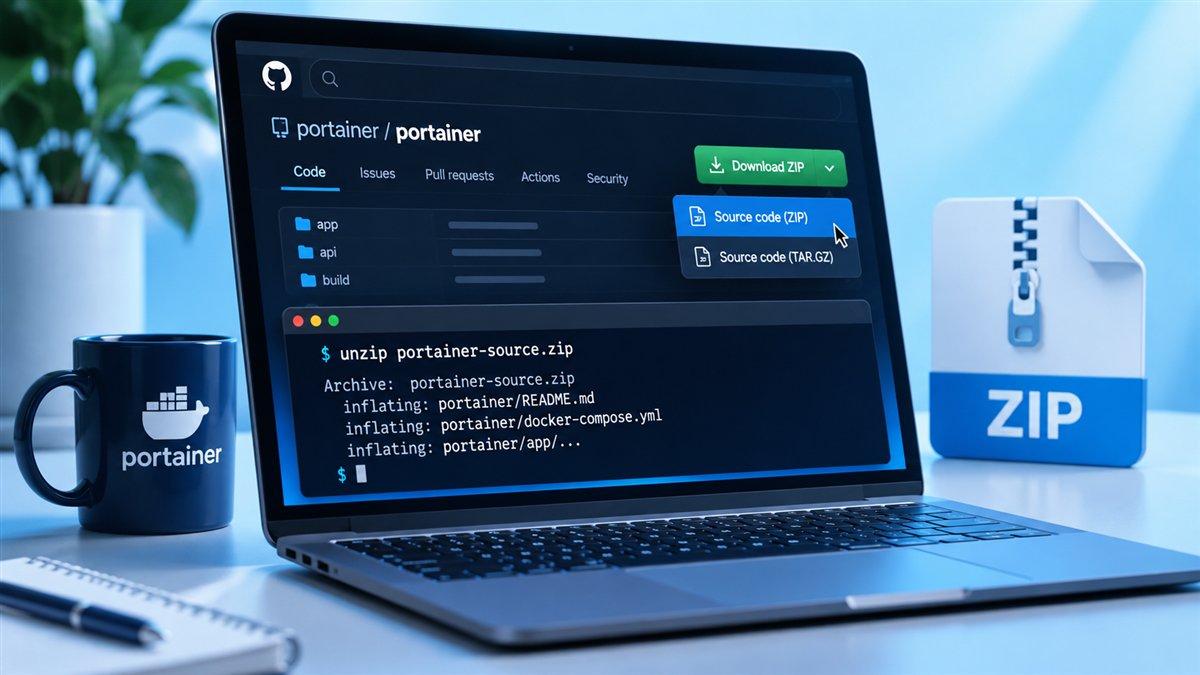
Get the source code as a ZIP file. This archive is intended for inspecting or building the project; Docker installations use the container image described below.
Download Source ZIPWhat You Are Really Downloading
Portainer Community Edition (CE) is a web-based management interface that runs inside a container. When you "download" it, Docker pulls an image from a container registry and starts it as a service on your host. You then open the interface in a browser and manage your environments from there.
Because of this design, there is no traditional setup wizard to run. The download and the installation happen through a couple of Docker commands, which makes the process repeatable on almost any machine that already runs Docker.
Image vs Source Code
Two different things can be "downloaded" under the Portainer name, and it helps to keep them apart:
- The container image (
portainer/portainer-ce) is what most people need to run Portainer. - The source code on GitHub is for reviewing, building or contributing to the project.
- Business Edition uses a separate image (
portainer/portainer-ee) and needs a licence key.
Before You Start
A working Docker installation is the only real prerequisite for a standalone setup. Check it with docker version and make sure your user can run Docker commands, either through the docker group or with sudo.
| Requirement | Why it matters |
|---|---|
| Docker Engine or Docker Desktop | Portainer Server runs as a container |
| Internet access to the registry | Needed to pull the image the first time |
| Free port 9443 | Default HTTPS port for the web interface |
| Permission to use the Docker socket | Lets Portainer manage the local environment |
Pulling the Portainer CE Image
The cleanest way to download Portainer CE is to pull the image explicitly. Using the lts tag keeps you on the long-term support channel that the project recommends for most servers.
docker pull portainer/portainer-ce:ltsWhen the pull completes, docker images should list the image with its tag. Nothing is running yet; you have only stored the image locally so it is ready to start.
Starting It After the Download
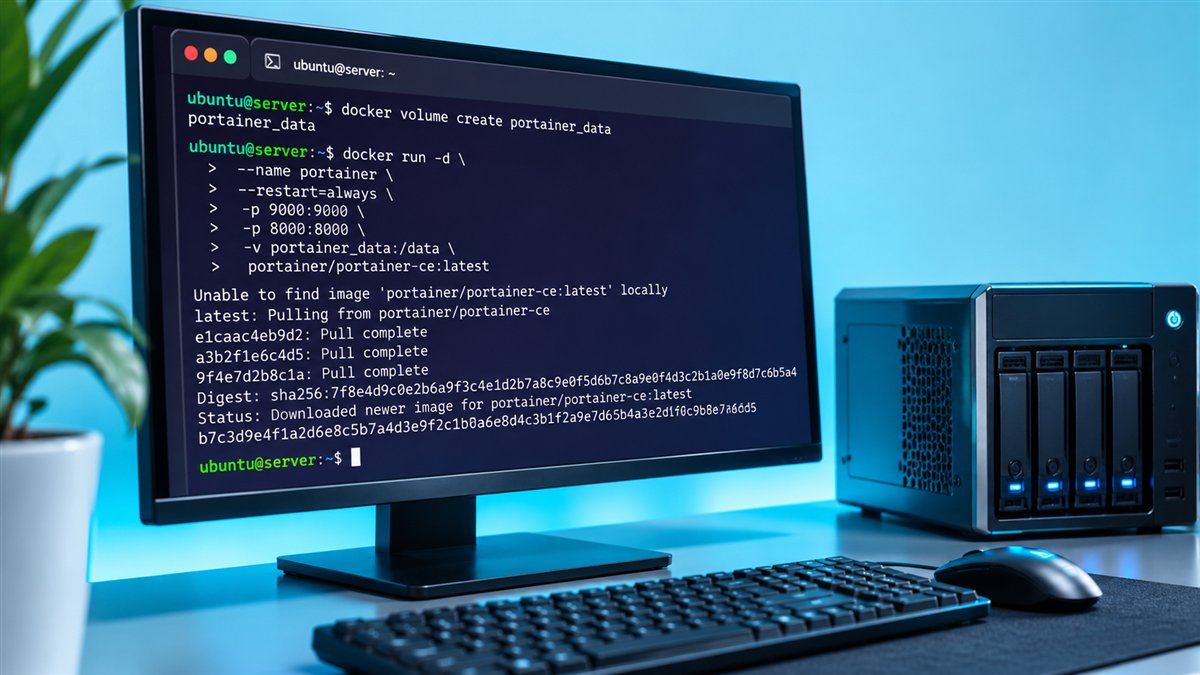
To turn the image into a running service, create a data volume and start the container. The full walkthrough is in our Portainer Docker installation guide, but the core commands look like this:
docker volume create portainer_data

docker run -d -p 8000:8000 -p 9443:9443 --name portainer \
  --restart=always \
  -v /var/run/docker.sock:/var/run/docker.sock \
  -v portainer_data:/data \
  portainer/portainer-ce:lts
How to Confirm You Have a Trusted Copy
Most problems with "Portainer downloads" come from third-party sites that repackage software. Since Portainer is distributed as an image, you can avoid that risk entirely by pulling from the publisher's registry namespace and checking the project's own channels.
- Pull only
portainer/portainer-ceorportainer/portainer-ee, not look-alike names. - Compare release notes on the Portainer GitHub repository before upgrading.
- Use
docker image inspectto review the image digest and labels if your team tracks them. - Avoid sites that offer Portainer as a desktop installer, crack or "premium unlocked" file.
Downloading on Different Platforms
The same image approach works across platforms, with small differences in how Docker itself is installed. Linux servers usually run Docker Engine directly, while Windows and macOS users commonly rely on Docker Desktop.
Linux Servers
Linux is the most common home for Portainer. After installing Docker Engine from your distribution or Docker's repository, the pull and run commands above work as written, including the socket mount.
Windows and macOS
On Docker Desktop, Portainer usually runs against the Linux engine that Desktop provides. Windows containers need a different socket path, so follow the Windows section of Portainer's documentation if you manage Windows-native containers.
Kubernetes Clusters
For Kubernetes you do not pull and run the image by hand. Portainer provides deployment manifests and Helm-based installs that create the right service, storage and permissions inside the cluster.
After the Download: First Login
Open https://localhost:9443 (or your server's address) in a browser. Your browser will warn about the default self-signed certificate; that is expected on a first install and can be replaced with your own certificate later.
Create the administrator account straight away. For security, a fresh instance only waits a short time for this step, and if it times out you simply restart the container. Some recent releases may also ask for a one-time setup token, which you can read with docker logs portainer.
Keeping Your Download Up to Date
Updating Portainer is effectively downloading a newer image and recreating the container with the same volume. Your users, settings and environments live in portainer_data, so they survive the swap.
docker stop portainer
docker rm portainer
docker pull portainer/portainer-ce:lts
# then run the same docker run command again
Back up the data volume before major upgrades, and read the release notes for any changes that need extra steps.
Choosing Between LTS and STS Tags
The tag you pull decides how often your instance changes. The lts tag tracks long-term support releases that receive fixes over a longer period, which suits servers you want to touch rarely. The sts tag moves faster and brings new features sooner.
For strict change control, pin a specific version tag instead. That way a routine pull never upgrades you by surprise, and you decide exactly when to move forward after reading the release notes.
- Home labs and production servers usually do well on
lts. - Test environments are a good place to try
stsreleases first. - Pinned version tags make upgrades fully deliberate.
Conclusion
Portainer download steps are simpler than they first appear: install Docker, pull portainer/portainer-ce:lts, start it with a persistent volume and finish the admin setup in your browser. Sticking to the publisher's image and GitHub releases keeps your setup clean and easy to update.
When you are ready for the full setup, continue with the Linux installation walkthrough or go to the download section on the homepage.