Portainer Docker installation on Linux takes only a few minutes once Docker itself is working. Portainer Server runs as a container, stores its data in a Docker volume and serves a web interface over HTTPS, so you can manage containers, images, networks and volumes without typing long commands every time.
This walkthrough covers prerequisites, the exact commands, first login, firewall tips and how to update without losing data.
Prerequisites
You need a Linux host with Docker Engine installed and running, plus a user that can run Docker commands. Ubuntu, Debian and RHEL-family distributions are all common choices.
- Docker Engine installed and the service enabled at boot.
- Shell access with
sudoor membership in thedockergroup. - Port 9443 free on the host, and reachable from your browser.
- Optionally, port 8000 if you plan to connect Edge agents later.
Check Docker First
Run docker version and docker ps. If both commands work without errors, Docker is ready. If you see a permission error, add your user to the docker group and log in again, or prefix commands with sudo.
Create the Data Volume
Portainer keeps its database, users and settings under /data inside the container. Mapping that path to a named volume means your configuration survives restarts, upgrades and container re-creation.
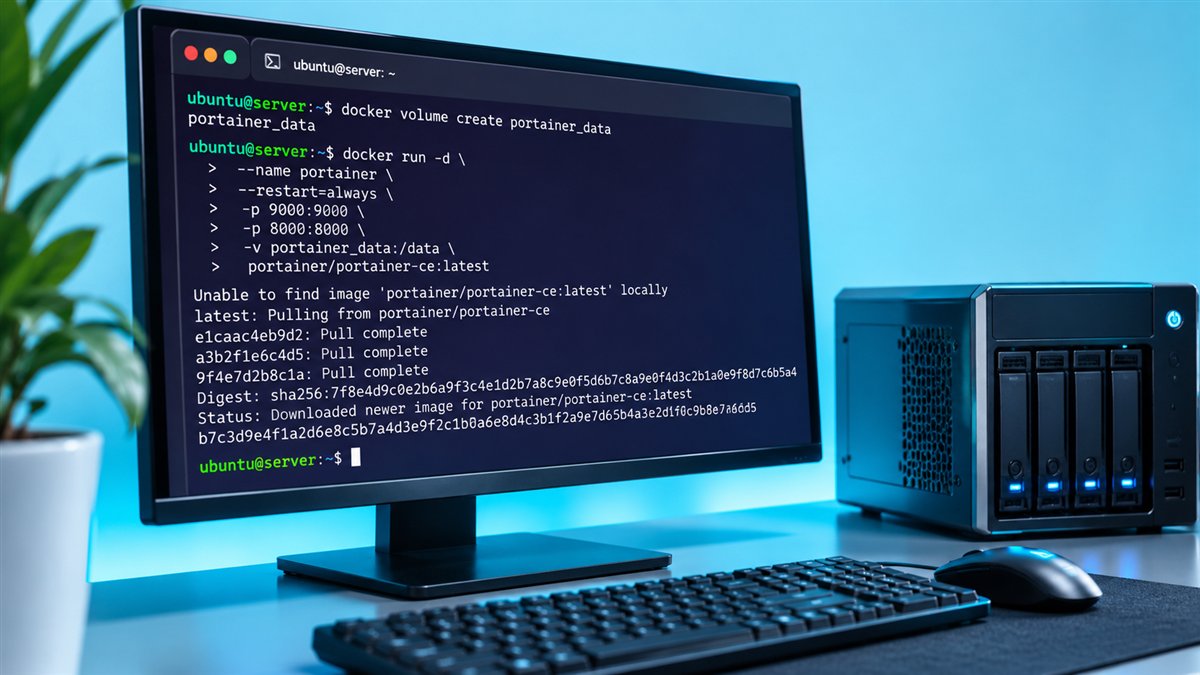
docker volume create portainer_dataYou can confirm it exists with docker volume ls. Docker manages the storage location, so you do not need to create folders by hand.
Run the Portainer Container
Start Portainer Server with the long-term support image. The command publishes the HTTPS interface, mounts the Docker socket and attaches the data volume:
docker run -d -p 8000:8000 -p 9443:9443 --name portainer \
  --restart=always \
  -v /var/run/docker.sock:/var/run/docker.sock \
  -v portainer_data:/data \
  portainer/portainer-ce:lts
What Each Option Does
| Option | Purpose |
|---|---|
-d | Runs the container in the background |
-p 9443:9443 | Publishes the HTTPS web interface |
-p 8000:8000 | Optional tunnel port for Edge agents |
--restart=always | Starts Portainer again after reboots or crashes |
-v /var/run/docker.sock:... | Gives Portainer access to the local Docker engine |
-v portainer_data:/data | Persists configuration in the named volume |
Skip -p 8000:8000 if you will never use Edge agents. Publishing fewer ports is a simple way to reduce exposure.
Verify the Container
Check that the container is up with docker ps --filter name=portainer. The status should read "Up" and show port 9443 mapped. If it keeps restarting, inspect the output of docker logs portainer for the reason.
First Login and Admin Setup
Browse to https://your-server-ip:9443. Portainer uses a self-signed certificate by default, so your browser shows a warning on the first visit. Accept it for now, then plan to add a proper certificate or reverse proxy later.
Create the administrator username and a strong password immediately. A new instance only waits a limited time for this step; if it times out, run docker restart portainer and try again. Some recent releases also ask for a setup token printed in the logs.
Connect the Local Environment
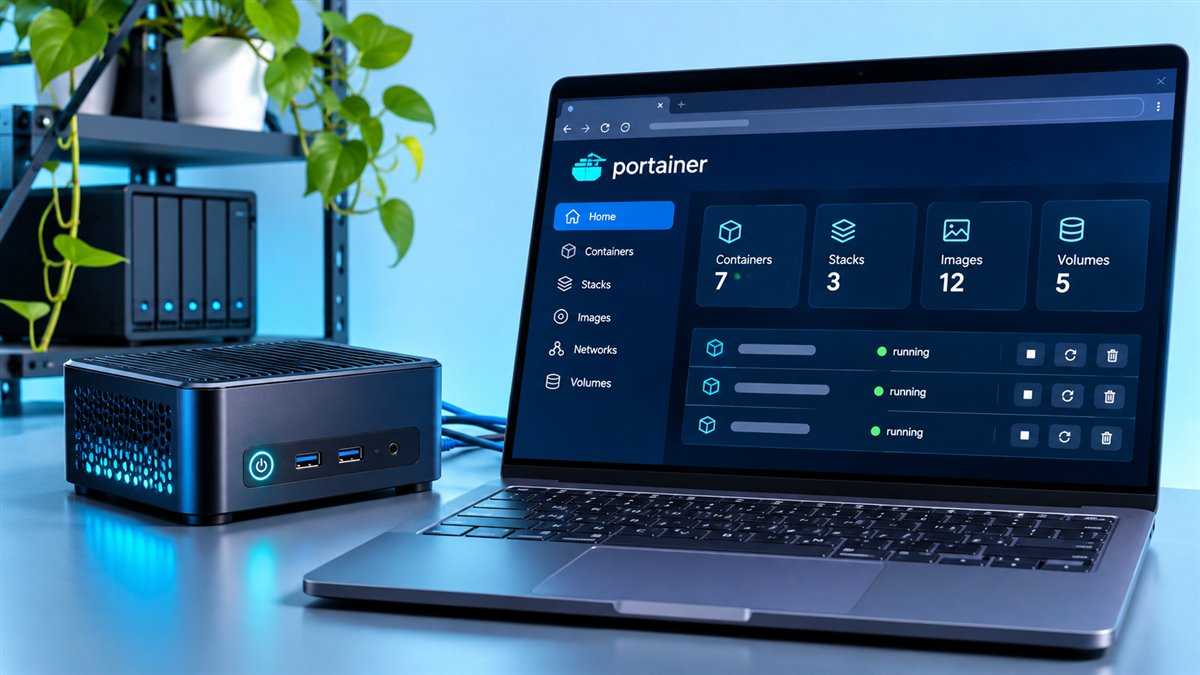
After logging in, choose to manage the local Docker environment. Portainer reads the mounted socket and shows your containers, images, volumes and networks on the dashboard.
Firewall and Security Tips
Portainer controls Docker with powerful privileges, so restrict who can reach it. Limit port 9443 to trusted IP addresses, use strong passwords and avoid exposing the interface to the whole internet.
- Remember that ports published by Docker can bypass some host firewall rules.
- Bind to
127.0.0.1:9443when a reverse proxy handles public access. - Replace the default certificate with your own for long-term use.
- Back up the
portainer_datavolume on a schedule.
Updating Portainer Later
Updates replace the container but keep the volume. Stop and remove the old container, pull the newer image and run the same command again. Read the release notes on the GitHub repository first.
docker stop portainer && docker rm portainer
docker pull portainer/portainer-ce:lts
If you prefer YAML over long commands, the same setup works with Compose, as shown in our Portainer Docker Compose guide.
Adding More Environments
Once the local environment works, you can manage other machines from the same Portainer instance. Remote Docker hosts and Swarm clusters usually connect through the Portainer Agent, a small container that runs on the target and listens for your Portainer Server.
Machines that sit behind NAT or strict firewalls are better served by the Edge Agent, which connects outward to Portainer instead. That is where the optional port 8000 comes in, because Edge agents use it to open their tunnel back to the server.
Agent vs Edge Agent
| Option | Connection direction | Good for |
|---|---|---|
| Portainer Agent | Server connects to the agent | Hosts on the same trusted network |
| Edge Agent | Agent connects to the server | Remote sites, NAT and locked-down networks |
Backing Up Portainer
Your Portainer configuration lives in one place, which makes backups simple. You can back up the portainer_data volume with your usual volume backup method, or use the backup option in Portainer's settings where available.
Test a restore at least once on a spare machine. A backup you have never restored is only a hope, and checking it early avoids surprises during a real incident.
Uninstalling Portainer
Removing Portainer is as simple as stopping and deleting the container with docker stop portainer and docker rm portainer. Your managed containers keep running, because Portainer only manages them and does not own them. Delete the portainer_data volume only if you are sure you no longer need its settings.
Frequently Asked Questions
The web interface uses HTTPS on port 9443. Port 8000 is optional and only needed for Edge agents, while port 9000 is a legacy HTTP option.
Mounting /var/run/docker.sock lets Portainer manage the local Docker environment. Treat it as powerful access, because anyone with Portainer admin rights can control containers on that host.
No, as long as you reuse the same portainer_data volume. Users, environments and settings are stored there, not in the container itself.
Yes. Many teams publish port 9443 only on localhost and let Nginx, Traefik or another proxy handle the public certificate and domain.
Conclusion
Portainer Docker installation on Linux comes down to three moves: create the portainer_data volume, run the portainer-ce:lts container with the socket mounted and finish the admin setup on port 9443. Add sensible network restrictions and backups, and you have a reliable management interface.
If anything goes wrong along the way, the troubleshooting guide covers the most common setup problems.