Manage containers
Deploy, start, stop, restart and inspect containers, with logs and console access built in.
Portainer brings Docker, Docker Swarm and Kubernetes management into one clear dashboard. Deploy applications, organise containers and monitor your environments from your browser.
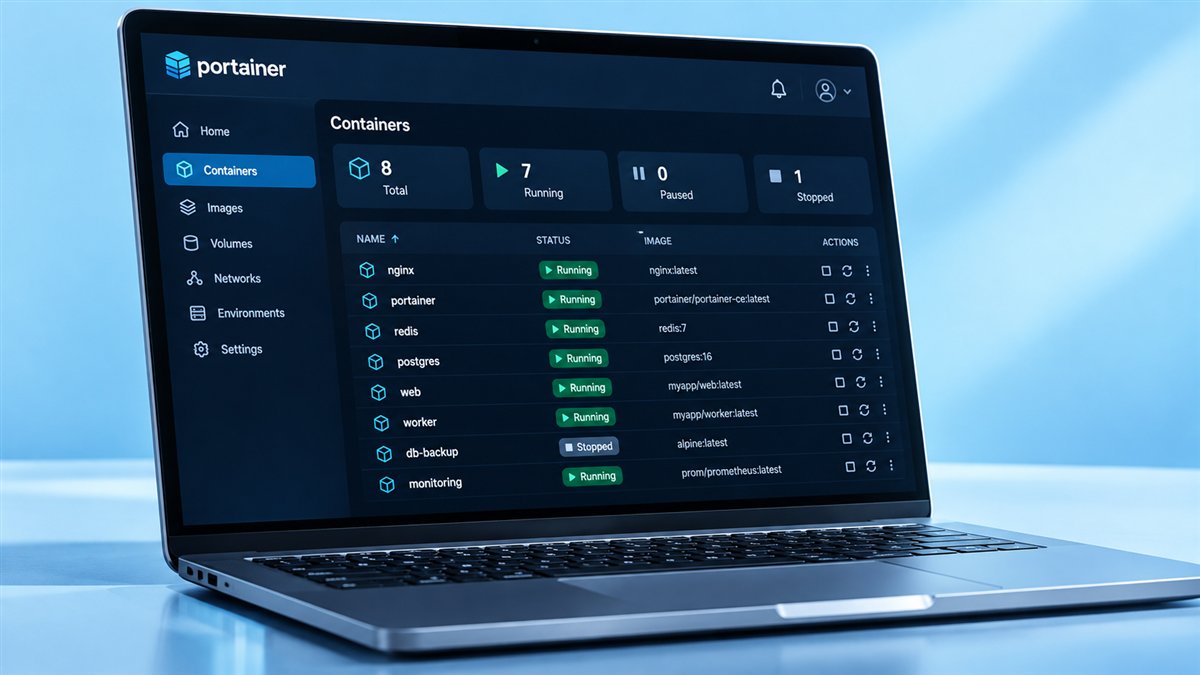
A visual control centre for your containerised environments.
Portainer is a container management platform that gives you a simple, visual way to work with Docker and Kubernetes. It helps you deploy applications, manage resources and keep your containerised environments under control, without the complexity.
It runs as a single lightweight container, connects to your local Docker engine or to remote clusters, and presents containers, images, volumes, networks and stacks in one clean web interface. The Community Edition is free and open source, while Business Edition adds features for larger organisations.
Everything you need to manage containerised applications, in one clean, intuitive platform.
Deploy, start, stop, restart and inspect containers, with logs and console access built in.
Work with Docker standalone, Docker Swarm and Kubernetes clusters from one interface.
Roll out apps with stacks, Compose files, manifests, Helm charts and app templates.
Organise users and teams and decide who can see and change which resources.
Check container status, live resource stats and logs to keep services running smoothly.
Get from setup to a fully managed environment in a few simple steps.
Run Portainer Server as a container on Docker, or deploy it inside Kubernetes.
Add your local Docker host, a Swarm cluster, a Kubernetes cluster or remote agents.
Run containers, deploy stacks and manage images, volumes and networks visually.
Watch status, logs and resource usage, then scale or update applications as needed.
A practical, proven way to manage containerised workloads with less complexity and more control.
Get up and running in minutes with a clean interface that removes much of the command-line friction.
Start with a single host and grow to multiple Swarm or Kubernetes environments in the same instance.
The Community Edition is free and open source, with a business edition for teams that need more.
Regular releases, public source code and an active community make it a dependable choice.
Handle the day-to-day and big-picture needs of your containerised workloads in one place.
Launch apps from templates, stacks or manifests.
Pull, clean up and organise images and storage.
Create networks and connect containers to them.
Deploy and manage namespaces and applications.
View live CPU, memory and network stats.
Read logs, open consoles and fix issues quickly.
Choose the edition that fits your team, from a free, open-source option to a feature-rich business edition with commercial support.
Feature lists and pricing change between releases. Read our CE vs Business Edition guide for a detailed comparison.
Download the release/2.45 source archive, or install Portainer with Docker to start managing your containers.

Source code ZIP - release/2.45 branch. For a running installation, use the portainer/portainer-ce:lts container image.
Get Portainer running quickly and start managing your containers in minutes.
Make sure Docker Engine or Docker Desktop is installed and running on the host.
Run docker volume create portainer_data so settings persist across updates.
Run the portainer/portainer-ce:lts container with port 9443 and the Docker socket mounted.
Open https://localhost:9443, accept the self-signed certificate and set a strong admin password.
docker volume create portainer_data

docker run -d -p 8000:8000 -p 9443:9443 --name portainer \
  --restart=always \
  -v /var/run/docker.sock:/var/run/docker.sock \
  -v portainer_data:/data \
portainer/portainer-ce:ltsPortainer connects to the container platforms you already use. Check the documentation for exact version support.
| Runtime | Docker Engine or Docker Desktop for standalone installs; a Kubernetes cluster for Kubernetes installs |
|---|---|
| Host systems | Linux servers, plus Windows and macOS through Docker Desktop |
| Default ports | 9443 (HTTPS UI), 8000 (optional Edge tunnel), 9000 (optional legacy HTTP) |
| Storage | A persistent volume mapped to /data, such as portainer_data |
| Access | A modern web browser on any device that can reach the server |
A great fit for anyone who works with Docker or Kubernetes and wants a simpler, more visual way to manage it.
Build, test and deploy containerised applications without memorising every command.
Manage multiple environments and keep workloads running smoothly from one place.
Gain visibility and consistency across container infrastructure and servers.
A simple, hands-on way to teach and learn how containers really work.
Simple habits that keep your Portainer instance and the hosts it manages secure.
Pull only portainer/portainer-ce or portainer/portainer-ee images and check releases on GitHub.
Limit port 9443 to trusted addresses and avoid exposing the interface to the open internet.
Socket access is powerful. Give Portainer admin rights only to people you trust.
Back up the data volume before upgrades so users and settings can be restored.
Follow the LTS channel and read release notes before applying updates.
Swap the self-signed certificate for your own, or place Portainer behind a reverse proxy.
An honest look at where Portainer shines and what to keep in mind.
Portainer publishes releases on GitHub through two support channels. Pick the one that matches how often you want to update.
The portainer-ce:lts tag follows long-term support releases, recommended for servers that should change rarely.
Short-term support releases bring newer features sooner and suit teams that like to stay current.
Every release is documented on the GitHub repository. Read the notes before upgrading production instances.
Quick fixes for the problems people run into most often when setting up Portainer.
Use https:// on port 9443, confirm the container is running with docker ps and check host firewalls.
Restart with docker restart portainer and create the admin account right away.
Recreate the container with -v /var/run/docker.sock:/var/run/docker.sock and review SELinux/AppArmor rules.
Another service is using 9443. Free the port or map a different host port, such as -p 9444:9443.
Recreate the container with the same portainer_data volume and identical options.
Quick answers to common questions about Portainer, its editions and how it works.
Portainer is a container management platform with a web interface for Docker, Docker Swarm and Kubernetes. It lets you deploy applications, manage resources and monitor containers without relying only on the command line.
Yes. Portainer Community Edition (CE) is free and open source. Business Edition is a paid product with extra features for organisations.
CE provides the core management features for free. Business Edition adds advanced role-based access control, broader identity integrations, extra operational features and commercial support.
The Community Edition source code is published on GitHub under the zlib licence. Business Edition is commercial.
Yes. One Portainer instance can manage Docker standalone hosts, Docker Swarm clusters and Kubernetes clusters from the same interface.
Many teams run Portainer in production. Secure it with strong passwords, restricted network access, a proper certificate and regular backups of its data volume.
Portainer is developed by the Portainer team, with source code, releases and issue tracking on the project's GitHub repository.
It covers most everyday tasks visually, but the CLI remains useful for scripting, automation and some advanced options.
Yes. Remote environments connect through the Portainer Agent or the Edge Agent, which suits machines behind firewalls or NAT.
The logo shows a crane lifting containers above a cloud, symbolising the management of container workloads on modern infrastructure.
Download the release/2.45 source ZIP directly, or run docker pull portainer/portainer-ce:lts to get the container image for installation.
The web interface uses HTTPS on port 9443 by default. Port 8000 is optional for Edge agents, and port 9000 is a legacy HTTP option.
Portainer uses a self-signed certificate by default. The warning is expected on a fresh install; replace the certificate or use a reverse proxy for long-term use.
A new instance waits only a short time for the first admin account. Restart the container with docker restart portainer and complete the setup straight away.
Yes. A short compose file with the portainer-ce image, port 9443, the Docker socket and a named data volume works well and is easy to update.
Stop and remove the container, pull the newer image and start it again with the same volume and ports. Your settings are kept in the portainer_data volume.
Configuration, users and environments are stored in the /data path inside the container, usually mapped to a named volume such as portainer_data.
Yes, through Docker Desktop. Windows-native containers use a different socket path, so follow the Windows instructions in Portainer's documentation.
Open your environment, choose Stacks, then Add stack. Paste the YAML, upload a file or link a Git repository, set any environment variables and deploy.
Another admin can reset it from the Users page. Otherwise, use Portainer's documented password reset helper against the data volume, after taking a backup.